





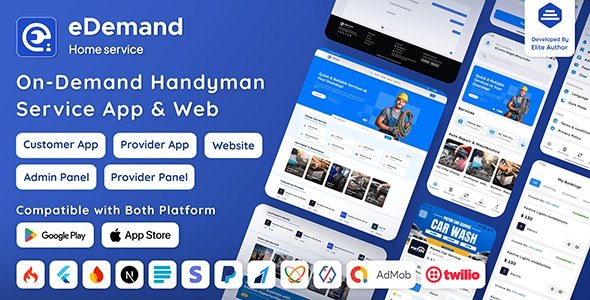
eDemand is an all-in-one Flutter handyman app, CodeIgniter admin panel, and Next.js web platform designed to help entrepreneurs, agencies, and developers launch a scalable multi-vendor on-demand service marketplace with zero setup hassle.
Whether you’re starting a handyman booking app, a home services platform, or a complete service on-demand ecosystem, eDemand has everything you need from customizable templates to real-time bookings and multi-language support.
Built for performance and flexibility, this handyman service application delivers native-like speed, a modern UI, and full white-label customization to suit any niche – making it the ideal service booking script for rapid deployment, monetization, and growth.
Features of eDemand - Multi Vendor On-Demand Handyman Service App
eDemand offers a robust technical foundation that best suits high-performance service on-demand applications as well as online handyman marketplace platforms:
Flutter Mobile Applications: Separate apps for Customers and Service Providers, delivering personalized user journeys.
CodeIgniter Panels: Dedicated panels for Service Providers and a Super Admin to efficiently manage and oversee platform activities.
NextJS Website: Individual website for Customers, providing optimized user experiences.
Comprehensive Documentation: Step-by-step guides for easy setup and installation.
Lifetime Free Updates: Stay current with regular feature upgrades and improvements.
6 Months Technical Support: Access to our expert team for any technical assistance.
Create an account or sign in to leave a review
There are no reviews to display.