





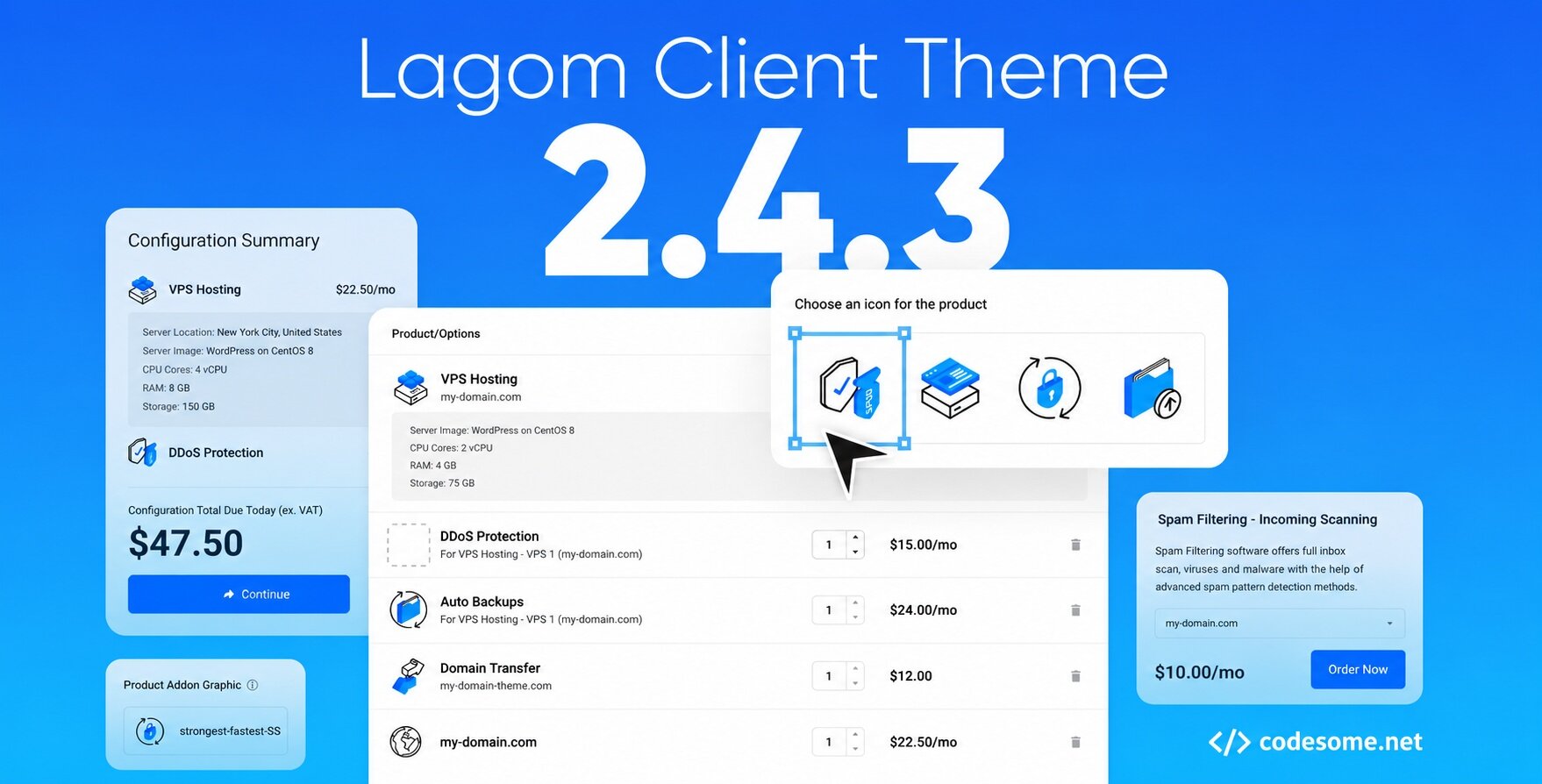
Lagom WHMCS Client Theme is a modern, clean, and user-friendly design template created specifically for WHMCS, a popular client management and billing platform for web hosting companies. The theme aims to enhance the user experience by providing a sleek and professional interface for clients to manage their accounts, view invoices, submit support tickets, and access other services seamlessly.
Lagom WHMCS Client Theme is a premium theme for WHMCS, the client management, billing, and automation platform widely used by web hosting companies. The theme replaces WHMCS's default client-area interface with a more modern, responsive, and customizable design.
Lagom WHMCS Theme features
According to its documentation and marketplace listing, Lagom includes:
Multiple layouts and page templates
Responsive design for desktop, tablet, and mobile
Style and color customization
Menu management tools
Homepage and landing-page customization
Dark mode support
SEO management options
Integration support for various WHMCS modules
Custom fonts and navigation styles
Client dashboards
Hosting and domain management pages
Order forms and checkout flows
Support ticket areas
Billing and invoice pages
Customizable layouts and color schemes
Intuitive navigation menus
Improved user interface elements
Faster load times and optimized performance
Create an account or sign in to leave a review
There are no reviews to display.